
Important Basic Computer shortcut keys to be known.

A-Z Shortcut Keys in Microsoft Word

  • F1 key — Get help or use the Office assistant
  • SHIFT and F1 Key — Context sensitive help
  • F2 Key — Move text or image
  • SHIFT + F2 Key — Copy text
  • F3 Key — Insert an autotext entry
  • SHIFT + F3 Key — Change the case of the selected text
  • F4 Key — Perform last action again
  • SHIFT + F4 Key — Perform a Find or Go to action again
  • F5 Key — Displays the Go to dialogue box. You can also get to Find and Replace from here
  • SHIFT + F5 Key — Move to a previous revision
  • F6 Key — Go to the next frame or pane
  • SHIFT + F6 Key — Go to the previous frame or pane
  • F7 Key — Launch the Spell checker
  • SHIFT + F7 Key — Launch the Thesaurus
  • F8 Key — Extend the current selection
  • SHIFT + F8 Key — Shrink the current selection
  • F9 Key — Update the selected fields
  • SHIFT + F9 Key — Switch between a field code and its result
  • F10 Key — Activate the menu bar
  • SHIFT + F10 Key — Display a Shortcut Menu (same as right-clicking)
  • F11 Key — Go to the next field
  • SHIFT + F11 Key — Go to the previous field
  • F12 Key — Save file As, equivalent to tools menu
  • SHIFT + F12 Key — Save document, equivalent to tools menu
  • CTRL and A — Selects all in the current document
  • CTRL and B — Bold text
  • CTRL and C — Copies the item or text to the Clipboard and can be pasted using CTRL and V
  • CTRL and D — Displays the Font dialogue box
  • CTRL and E — Centre Alignment
  • CTRL and F — Displays the Find dialog box, to search the current document
  • CTRL and G — Displays the Go to dialog box, to go to a specific location in the current document
  • CTRL and H — Displays the Replace dialogue box
  • CTRL and I — Italic text
  • CTRL and J — Full Justification
  • CTRL and K — Create Hyperlink
  • CTRL and L — Left Alignment
  • CTRL and M — Tab
  • CTRL and N — Creates a new document
  • CTRL and O — Displays the Open File dialogue box
  • CTRL and P — Displays the Print dialog box
  • CTRL and R — Right Alignment
  • CTRL and S — Displays the Save dialog box
  • CTRL and U — Underline text
  • CTRL and V — Pastes the copied item or text from the Clipboard into the current position in the document
  • CTRL and X — Cuts the item or text selected to the Clipboard
  • CTRL and Y — Redo the last undone action
  • CTRL and Z — Undoes the last action
  • CTRL and ENTER — Insert Page Break
  • CTRL and F2 — Show Print preview
  • CTRL and F4 — Closes the active document window
  • CTRL and F6 — Opens the next document window

Windows Shortcut Keys

Windows key + R — Run menu
Windows key + E — Explorer
ALT + Tab — Switch between windows

ALT + Space + X — Maximize window

CTRL + Shift + Esc — Task Manager

Windows key + Break — System properties

Windows key + F — Search

Windows key + D — Hide/Display all windows

CTRL + C — Copy

CTRL + X — Cut

CTRL + V — Paste

Keyboard Shortcuts in Windows

[Alt] + [Esc] — Switch between running applications
[Alt] + letter — Select menu item by underlined letter

[Ctrl] + [Esc] — Open Program Menu

[Ctrl] + [F4] — Close active document or group windows (does not work with some applications)

[Alt] + [F4] — Quit active application or close current window

[Alt] + [-] — Open Control menu for active document

Ctrl] Lft. + Rt. arrow — Move cursor forward or back one word

Ctrl] Up + Down arrow — Move cursor forward or back one paragraph

[F1] — Open Help for active application

Windows + M — Minimize all open windows

Shift+Windows + M — Undo minimize all open windows

Windows + F1 — Open Windows Help

Windows + Tab — Cycle through the Taskbar buttons

Windows + Break — Open the System Properties dialog box

Accessability Shortcuts

  • Right SHIFT for eight seconds — Switch FilterKeys on and off
  • Left ALT + left SHIFT + PRINT SCREEN — Switch High Contrast on and off
  • Left ALT + left SHIFT +NUM LOCK — Switch MouseKeys on and off
  • SHIFT five times — Switch StickyKeys on and off
  • NUM LOCK for five seconds — Switch ToggleKeys on and off

Explorer Shortcuts

  • END — Display the bottom of the active window
  • HOME — Display the top of the active window
  • NUM LOCK + ASTERISK — on numeric keypad (*) Display all subfolders under the selected folder
  • NUM LOCK + PLUS SIGN — on numeric keypad (+) Display the contents of the selected folder
  • NUM LOCK + MINUS SIGN — on numeric keypad (-) Collapse the selected folder
  • LEFT ARROW — Collapse current selection if it's expanded, or select parent folder
  • RIGHT ARROW — Display current selection if it's collapsed, or select first subfolder
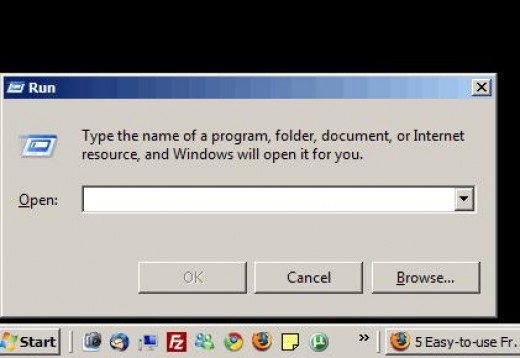
  • System Commands

    Type the following commands in your Run Box (Windows Key + R) or Start Run
    • devmgmt.msc — Device Manager
    • msinfo32 — System Information
    • cleanmgr — Disk Cleanup
    • ntbackup — Backup or Restore Wizard (Windows Backup Utility)
    • mmc — Microsoft Management Console
    • excel — Microsoft Excel (If Installed)
    • msaccess — Microsoft Access (If Installed)
    • powerpnt — Microsoft PowerPoint (If Installed)
    • winword — Microsoft Word (If Installed)
    • frontpg — Microsoft FrontPage (If Installed)
    • notepad — Notepad
    • wordpad — WordPad
    • calc — Calculator
    • msmsgs — Windows Messenger
    • mspaint — Microsoft Paint
    • wmplayer — Windows Media Player
    • rstrui — System Restore
    • netscp6 — Netscape 6.x
    • netscp — Netscape 7.x
    • netscape — Netscape 4.x
    • waol — America Online
    • control — Opens the Control Panel
    • control printers — Opens the Printers Dialog
    • cmd — Command Prompt
    • iexplore + "web address" — Internet Explorer
    • compmgmt.msc — Computer Management
    • dhcpmgmt.msc — DHCP Management
    • dnsmgmt.msc — DNS Management
    • services.msc — Services
    • eventvwr — Event Viewer
    • dsa.msc — Active Directory Users and Computers
    • dssite.msc — Active Directory Sites and Services

    Internet Explorer Shortcut Keys

    • Alt + Left Arrow — Back a page
    • Backspace — Back a page
    • Alt + Right Arrow — Forward a page
    • F5 — Refresh current page, frame, or tab
    • F11 — Display the current website in full screen mode. Pressing F11 again will exit this mode
    • Esc — Stop page or download from loading
    • Ctrl + (- or +) — Increase or decrease the font size, pressing '-' will decrease and '+' will increase
    • Ctrl + Enter — Quickly complete an address. For example, type google in the address bar and press CTRL + ENTER to get http://www.google.com
    • Ctrl + D — Add a Favorite for the page currently opened
    • Ctrl + I — Display available bookmarks
    • Ctrl + N — Open New browser window
    • Ctrl + P — Print current page / frame
    • Ctrl + T — Opens a new tab
    • Ctrl + F4 — Closes the currently selected tab
    • Ctrl + Tab — Moves through each of the open tabs
    • Spacebar — Moves down a page at a time
    • Shift + Spacebar — Moves up a page at a time
    • Alt + Down arrow — Display all previous text entered in a text box and/or available options on drop down menu

    Mozilla Firefox Shortcut Keys

    • Alt + Left Arrow — Back a page
    • Backspace — Back a page
    • Alt + Right Arrow — Forward a page
    • F5 — Refresh current page, frame, or tab
    • F11 — Display the current website in full screen mode. Pressing F11 again will exit this mode
    • Esc — Stop page or download from loading
    • Ctrl + (- or +) — Increase or decrease the font size, pressing '-' will decrease and '+' will increase
    • Ctrl + Enter — Quickly complete an address. For example, type google in the address bar and press CTRL + ENTER to get http://www.google.com
    • Shift + Enter — Complete a .net instead of a .com address
    • Ctrl + Shift + Enter — Complete a .org address
    • Ctrl + Shift + Del — Open the Clear Data window to quickly clear private data
    • Ctrl + D — Add a bookmark for the page currently opened
    • Ctrl + I — Display available bookmarks
    • Ctrl + J — Display the download window
    • Ctrl + N — Open New browser window
    • Ctrl + P — Print current page / frame
    • Ctrl + T — Opens a new tab
    • Ctrl + F4 — Closes the currently selected tab
    • Ctrl + Shift + T — Undo the close of a window
    • Ctrl + Tab — Moves through each of the open tabs
    • Spacebar — Moves down a page at a time
    • Shift + Spacebar — Moves up a page at a time
    • Alt + Down arrow — Display all previous text entered in a text box and/or available options on drop down menu
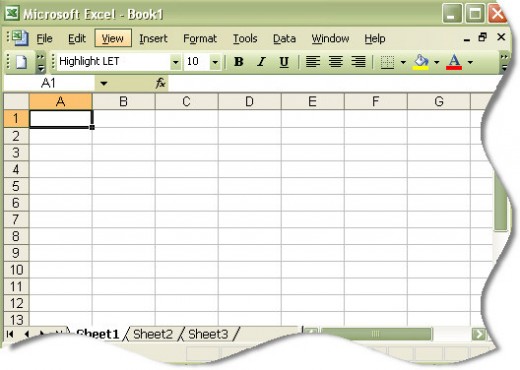
    Microsoft Excel Shortcut Keys

    • F2 — Edit the selected cell
    • F5 — Go to a specific cell. For example, C6
    • F7 — Spell check selected text and/or document
    • F11 — Create chart
    • Ctrl + Shift + — Enter the current time
    • Ctrl + — Enter the current date
    • Alt + Shift + F1 — Insert New Worksheet
    • Shift + F3 — Open the Excel formula window
    • Shift + F5 — Bring up search box
    • Ctrl + A — Select all contents of the worksheet
    • Ctrl + B — Bold highlighted selection
    • Ctrl + I — Italic highlighted selection
    • Ctrl + K — Insert link
    • Ctrl + U — Underline highlighted selection
    • Ctrl + 5 — Strikethrough highlighted selection
    • Ctrl + P — Bring up the print dialog box to begin printing
    • Ctrl + Z — Undo last action
    • Ctrl + F9 — Minimize current window
    • Ctrl + F10 — Maximize currently selected window
    • Ctrl + F6 — Switch between open workbooks / windows
    • Ctrl + Page up — Move between Excel work sheets in the same Excel document
    • Ctrl + Page down — Move between Excel work sheets in the same Excel document
    • Ctrl + Tab — Move between Two or more open Excel files
    • Alt + = — Create a formula to add all of the above cells
    • Ctrl + ' — Insert the value of the above cell into cell currently selected
    • Ctrl + Shift + ! — Format number in comma format
    • Ctrl + Shift + $ — Format number in currency format
    • Ctrl + Shift + # — Format number in date format
    • Ctrl + Shift + % — Format number in percentage format
    • Ctrl + Shift + ^ — Format number in scientific format
    • Ctrl + Shift + @ — Format number in time format
    • Ctrl + Arrow key — Move to next section of text
    • Ctrl + Space — Select entire column
    • Shift + Space — Select entire row

    Background: What Is a Shortcut?

    In computing, a keyboard shortcut is a finite set of one or more keys that invoke a software or operating system operation when triggered by the user.
    Keyboard shortcuts are typically an alternate means for invoking one or more commands that would otherwise be accessible only through a menu, a pointing device, different levels of a user interface, or via a command console. Keyboard shortcuts generally expedite common operations by reducing input sequences to a few keystrokes, hence the term "shortcut".
    Shortcut keys help provide an easier and usually quicker method of navigating and using computer software programs. Shortcut keys are commonly accessed by using the Alt (on IBM compatible computers), command key (on Apple computers), Ctrl, and/or Shift in conjunction with a single letter.

    How to Create a Windows Shortcut Key

    CREATE A SHORTCUT

    1. Open the folder or directory that contains the program you wish to create a shortcut for.
    2. Right-click on the program and click "Create Shortcut".
    3. This will create a shortcut named "Shortcut to <your program>" in the directory you are in. If you wish to rename this shortcut, right-click the file and click rename.
    4. Once the above steps have been completed, you can copy or cut this shortcut and paste it anywhere to execute this program.

    ASSIGN SHORTCUT KEY TO THAT WINDOWS SHORTCUT

    Once the shortcut has been created to assign a shortcut key to that Windows shortcut follow the below steps.
    1. Right-click the shortcut and click Properties.
    2. Click the Shortcut tab.
    3. Click in the Shortcut key box and press a letter. For example, if you press "p" the shortcut key will automatically be made Ctrl + Alt + P. Which means if saved when pressing Ctrl and Alt and "P" all at the same time will run that shortcut.

Basics in OOPS

Object-oriented programming has become the most widely used approach to software development. Learn about the core concepts of object-oriented programming and how they are implemented using objects, classes and methods in this video lesson.

What Is an Object in Programming?

Object-oriented programming, or OOP, is an approach to problem solving where all computations are carried out using objects. An object is a component of a program that knows how to perform certain actions and how to interact with other elements of the program. Objects are the basic units of object-oriented programming. A simple example of an object would be a person. Logically, you would expect a person to have a name. This would be considered a property of the person. You could also expect a person to be able to do something, such as walking or driving. This would be considered a method of the person.
Code in object-oriented programming is organized around objects. Once you have your objects, they can interact with each other to make something happen. Let's say you want to have a program where a person gets into a car and drives it from A to B. You would start by describing the objects, such as a person and car. That includes methods: a person knows how to drive a car, and a car knows what it is like to be driven. Once you have your objects, you bring them together so the person can get into the car and drive.

Classes and Objects

A class is a blueprint of an object. You can think of a class as a concept, and the object is the embodiment of that concept. You need to have a class before you can create an object. So, let's say you want to use a person in your program. You want to be able to describe the person and have the person do something. A class called 'person' would provide a blueprint for what a person looks like and what a person can do. To actually use a person in your program, you need to create an object. You use the person class to create an object of the type 'person.' Now you can describe this person and have it do something.
Classes are very useful in programming. Consider the example of where you don't want to use just one person but 100 people. Rather than describing each one in detail from scratch, you can use the same person class to create 100 objects of the type 'person.' You still have to give each one a name and other properties, but the basic structure of what a person looks like is the same.

Methods and Functions

Once you have created objects, you want them to be able to do something. This is where methods come in. A method in object-oriented programming is a procedure associated with a class. A method defines the behavior of the objects that are created from the class. Another way to say this is that a method is an action that an object is able to perform. The association between method and class is called binding. Consider the example of an object of the type 'person,' created using the person class. Methods associated with this class could consist of things like walking and driving. Methods are sometimes confused with functions, but they are distinct.
A function is a combination of instructions that are combined to achieve some result. A function typically requires some input (called arguments) and returns some results. For example, consider the example of driving a car. To determine the mileage, you need to perform a calculation using the distance driven and the amount of fuel used. You could write a function to do this calculation. The arguments going into the function would be distance and fuel consumption, and the result would be mileage. Anytime you want to determine the mileage, you simply call the function to perform the calculation.
How does this differ from a method? A function is independent and not associated with a class. You can use this function anywhere in your code, and you don't need to have an object to use it.
Now, what if you were to associate the function with an object of the type 'car?' For example, you want to be able display the mileage of the car on the dashboard. In this case, the mileage calculation has become a method because it is a procedure associated with the car's class. Every time you create a new object of the type 'car' using the car class, this method will be part of the object. The action the car is now able to perform is to calculate mileage. It is the same calculation as performed by the stand-alone function but is now bound to the car.

Family Relationships to be known 2

Basic words 
father – somebody’s male parent
mother – somebody’s female parent
parent – somebody’s father or mother
son – somebody’s male child
daughter – somebody’s female child
husband – the man who a woman is married to
wife – the woman who a man is married to
spouse – somebody married to another person; husband or wife
brother – a boy or man who has the same parents as another person
sister – a girl or woman who has the same parents as another person
sibling – a brother or sister
elder brother/sister – a brother/sister who is older than you
younger brother/sister – brother/sister who is younger than you
grandfather – somebody’s parent’s father
grandmother – somebody’s parent’s mother
grandparent – somebody’s parent’s parent
great grandfather – a father of your grandparent
great grandmother – a mother of your grandparent
grandson – somebody’s son’s or daughter’s son
granddaughter – somebody’s son’s or daughter’s daughter
grandchild – somebody’s son’s or daughter’s child
uncle – somebody’s mother’s or father’s brother; your aunt’s husband
aunt – somebody’s mother’s or father’s sister; your uncle’s wife
nephew – somebody’s brother’s or sister’s son; your husband’s or wife’s brother’s or sister’s son
niece – somebody’s brother’s or sister’s daughter; your husband’s or wife’s brother’s or sister’s daughter
cousin – somebody’s parent’s brother’s or sister’s child; somebody’s aunt’s or uncle’s child
stepfather – your mother’s husband (not your real father)
stepmother – your father’s wife (not your real mother)
stepbrother – your stepfather’s or stepmother’s son (at least one of your parents is different)
stepsister – your stepfather’s or stepmother’s daughter (at least one of your parents is different)
stepson – your spouse’s son (from an earlier marriage)
stepdaughter – your spouse’s daughter (from an earlier marriage)
father-in-law – your spouse’s father
mother-in-law – your spouse’s mother
brother-in-law – your spouse’s brother
sister-in-law – your spouse’s sister
son-in-law – your daughter’s husband
daughter-in-law – your son’s wife
boyfriend – a boy or man that a girl or woman goes out with
girlfriend – a girl or woman that a boy or man goes out with
widow – a woman whose husband has died
widower – a man whose wife has died
bachelor – a man who has never been married
spinster – a woman who has never been married
single – a person who isn’t married and doesn’t have a boyfriend/girlfriend
12 Words and Phrases with Examples
1. baby – a very young child
  • I always do some housework when the baby is sleeping in the afternoon.
2. infant – a baby or very young child, newborn child
  • My sister is 14 years old, but sometimes she acts like an infant.
3. toddler – a young child who has just learnt to walk
  • Toddlers can walk, but they don’t always talk yet.
4. marriage – legal relationship between a husband and wife
  • She only has a stepdaughter from her husband’s first marriage, but she likes her as her own.
  • 5. marry (sb), get married to sb – become somebody’s husband or wife
    • My father was 29 and my mother was 25 when they got married.
    6. go out (with sb) – spend time with somebody and have a romantic or sexual relationship with them
    • My parents had been going out for two years before they got married.
    • My mother doesn’t like that I go out with Tom; she says he’s too old for me.
    7. get engaged – agree to marry somebody
    • Imagine, my sister has just got engaged to a footballer, they’re planning to get married in the summer.
    8. wedding – the act of marrying, a marriage ceremony (and the meal or party that usually follows it)
  • 9. bride – a woman on her wedding day, or just before or just after it
    10. (bride)groom – a man on his wedding day, or just before or just after it
    • The prince’s wedding ceremony will take place in the cathedral. Then the bride and the groom will be taken to the wedding reception in an open Rolls Royce.
    11. honeymoon – a holiday taken by a couple who have just got married
    We couldn’t go to the Bahamas on honeymoon, but we felt sitting on the top of the world even in a campsite at the local lake.
    12. divorce – the legal ending of a marriage; end your marriage legally
    • Unfortunately, very many marriages end in a divorce in our country.
    • She divorced her husband immediately when she learned he had a secret girlfriend.
    • My friend and his wife got divorced at last, after long years of quarrel and disagreement.
  • If you absolutely enjoyed this English lesson, please share it with your friends and leave your comment below! Would be great to hear from you!

Family Relationships to be known 1

Handling Job Search Rejection

Ajay went for his first round of the interview and could immediately tell that he is through. So he was not at all taken aback when he received the call for the next round with the head of the department. He was ready for it and turned out to be the finalist too, and began reciting the HR question answers. However, he could not clear the last round and was rejected!
This all may sound a little dramatic or a little familiar, but most of us have been rejected at one interview or the other. In fact, the scenario is quite common among freshers as stepping into an environment of cut throat competition from the sheltered college life is not easy!
Getting rejected in a job interview is something which should be handled normally without exaggerating, for you never know what the destiny has in store for you.

Here are a few tips on how you should deal with the rejection, and move on to better, brighter things.


1) Never take it personally
A job interview is never a parameter of your value as a professional. You were dropped only because your job application didn’t match the specific job criteria. It may or may not concern with how you shown up at the interview. Just because you didn’t turn up the best match does not mean that you’re not skilled. Remember even the best and the experienced candidates also face rejection. But only those who stay calm, positive, motivated turn out to be successful.


2) Search the perfect job perfectly
It’s no use hiding in your bed or stopping your job search after being dropped in the first interview. The better way to ward off the effects is to search smartly this time. Not researching about the company, the required profile and skills are some of the common goof ups made by job seekers.
Every job posting has a job description which you should read carefully. Further, researching about the company, its work culture and values can also be highly helpful in your perfect job search.


3) Avoid needless anguish
Some jobs are worth fighting for, but dwelling on them needlessly is not! Cutting the contacts with your friends or avoiding socializing with people will lead you nowhere. So, get up and focus on your goal of finding the right job as opposed to the wrong one.


4) Don’t beat a dead horse
Never seek explanation for the rejection directly. It gives a negative feedback of you as a person. Instead of asking directly why you were rejected, the better strategy is to seek guidance regarding the areas you should improve. Also, you may inform the interviewer that you look forward to appear for the next interview that comes up.


5) Look to the positive side
If you are a true optimist, you must believe in the adage that "everything happens for a reason" and this rejection is telling you to keep looking and moving forward.

WHAT IT SECTOR WANTS?

IT job interview is difficult. It does not mean, however, that you should give up easily on the opportunity or the pay package. In fact, you should develop negotiating skills to make the most of the opportunity in front of you. However, this skill should be used after giving your best shot at the interview. In order to help you make the best out of the interview, take a look at these do’s and don’ts.

The 5 Don’ts

  1. Don’t be too demanding and unrealistic about remuneration, title etc. This is just the beginning and a way to get into the industry.
  2. Don’t be rude but present your points and concerns well. The interviewer should get the feeling that you are confident and clear in your thoughts and this can also impact your pay package.
  3. Don’t disrespect but don’t be overwhelmed also by the interviewer. They are just your seniors who have also gone through this phase. So, don’t make yourself too gullible in front of them, because that would give signals that you would easily agree to what they say.
  4. Don’t just look at the salary offered but take into account the company, its work culture, role, scope for growth etc. Negotiate, keeping these things in mind.
  5. Don’t settle for something which is way below your expectations. Instead, use your negotiating skills. Don’t hesitate to walk away from a very bad deal. This is not the last interview that you will get, there sure will be more opportunities in future.

The 5 Do’s

  1. Your resume holds the water. So, highlight those parts which can help you in getting that job. Think of what a prospective employer would be interested in. Hence, build upon your resume because you would be able to negotiate on the basis of its content.
  2. Understand the requirements of the job well and also the industry.
  3. Keep updating and enriching yourself because you belong to an ever-dynamic and fluid IT industry. If you have knowledge about the modern-day skills, you can command monetary benefits against those skills.
  4. Get a good score in exams like AMCAT, eLitmus or CoCubes. These kinds of scores help you differentiate and stand apart from the rest of the crowd.
  5. Be confident and optimistic as these two skills can do wonders for you.

Get professional help

Prepare well for the interview. The better prepared you are, the better are your chances to ace the IT job interview. And if you think, you need professional help, reach out to experts in the field like TalentSprint. Firstly, they will help you prepare well and get high scores in exams like AMCAT, eLitmus or CoCubes which have become a tool to differentiate from the crowd. Secondly, they can help you get trained professionally to face the interviews with multiple sessions from both subject experts and soft skills trainers.

Introduction to C#

What is Structure in C#

Structure is a user-defined value type which encapsulates member data and member function.
A struct is a user-defined value type. It is declared in a very similar way to a class, except that it can't inherit from any class, nor can any class inherit from it (as mentioned\ previously, however, all value types do inherit from System.object), The following example shows a partial declaration for a 'Coordinate' struch.

What is enumeration in C#

An enumeration is a special set of numeric type string literals which considered as a constants.
An enumeration is a special kind of value type limited to a restricted and unchangeable set of numerical values. By default, these numerical values are integers, but they can also be longs, bytes, etc. (any numerical/value except char) as will be illustrated below.
 

Type of String in C#

A string is an empty space, a character, a word, or a group of words.
A string is an empty space, a character, a word, or a group of words that you want the compiler to consider "as is", that is, not to pay too much attention to what the string is made of, unless you explicitly ask it to. This means that, in the strict sense, you can put in a string anything you want.

Type of Array

An array is a group or collection of similar type of elements.

An array is a group or collection of similar values. An array contains a number of variables, which are accessed through computed indexes. The various value contained in an array are also called the elements of array. All elements of an array have to be of same type, and this type is called the element type of the array. The element of an array can be of any type including an array type.

What is Scope of Variable

In the body of a method, you can also declare variables that would be used internally. A variable declared in the body is referred to as a local variable. It cannot be accessed outside of the method it belongs to. After declaring a local variable, it is made available to the method and you can use it.

Type of Method in C#

The Function defined with in class is called method. It is a code designed to work on the member data of class.

Methods are operations associated with types. To provide a type with methods is to give it some useful functionality. Often this functionality is made generally available, so that it can be utilized by other types.

Multiple Main() Functions in C#

C# has a strong feature in which we can define more than one class with the Main method. Since Main is the entry point for the program execution, there are now more than one entry points. In fact, there should be only one entry point. Which will be resolved by specifying which Main is to be used to the compiler at the time of compilation as shown below:

Command Line Arguments

Command line arguments are parameters supplied to the Main method at the time of invoking it for execution. To understand the concepts see the example given below:
Program of Command line argument to accept name from the command line and writes to the console. (Sample.cs)


What is Namespace in C#

When many people work in creating the same program, it could be difficult to keep track of the names of various classes. If more than one programmer creates a class with the same name in the same program, there would be conflict and the program would not work. The solution to avoid this situation is to delimit sections of code with names.

Types of Statements in C#

Like C++ it contains three types of statements.
1. Simple Statements
2. Compound Statements
3. Control Statements

A Simple C# Program

Let's begin in the traditional way, by looking at the code of a Hello World program.
1. using System;
2. public class HelloWorld
3. {
4. public static void Main()
5. {
6. II This is a single line comment
7. /* This is a
8. multiple
9. line comment */
10. Console.WriteLine("Hello World! ");
11. }
12. }

Explain C# Data Type

C# is a type-safe language Variables· are declared as .being of a particular type; and each variable is constrained to hold only values of its declared type.
Variables can hold either value types or reference types, or they can be pointers. Here's a quick recap of the difference between value types and reference types.

C# KEYWORDS

C# uses a series of words, called keywords, for its internal use. This means that you must avoid naming your objects using one of these keywords.

Identifiers And Variables

Identifiers refer to the names of variables, functions arrays, classes, etc. created by programmer. They are fundamental requirement of any language. Each language has its own rules for naming these identifiers.
To name the variables of your program, you must follow strict rules. In fact, everything else in your program must have a name.
There are some rules you must follow when naming your objects. On this site, here are the rules we will follow:
• The name must start with a letter or an underscore or the at symbol @.
• After the first letter or underscore, the name can have letters, digits, and/or underscores.
• The name must not have any special characters other than the underscore.
• The name cannot have a space.
• It should not a keyword.
C# is case-sensitive. This means that the names Case, case, and CASE are completely different. For example, the main function is always written Main.

FEATURES OF C#

Simplicity

All the Syntax of java is like C++. There is no preprocessor and much larger library. C# code does not require header files. All code is written inline.

Consistent Behavior

C# introduced a unified type system which eliminates the problem of varying ranges of integer types. All types are treated as objects and developers can extend the type system simply and easily.

Modern Programming Language

C# supports number of modem features, such as:
• Automatic Garbage Collection
• Error handling features
• Modern debugging features
• Robust Security features

Pure Object-Oriented Programming Language

In C#, every thing is an object. There are no more global functions, variable and constants.
It supports all three object oriented features:
• Encapsulation
• Inheritance
• Polymorphism

How to Comparing C# to C++ and Java

Microsoft Corporation developed a new computer programming language C# pronounced as 'C- Sharp'. C# is a simple, modem, object oriented, and type safe programming language derived from C and C++. C# is a purely object-oriented language like as Java. It has been designed to support the key features of .NET framework. Like Java, C# is a descendant language of C++ which is descendant of C language.